Desktop
Overdo, on your desktop.
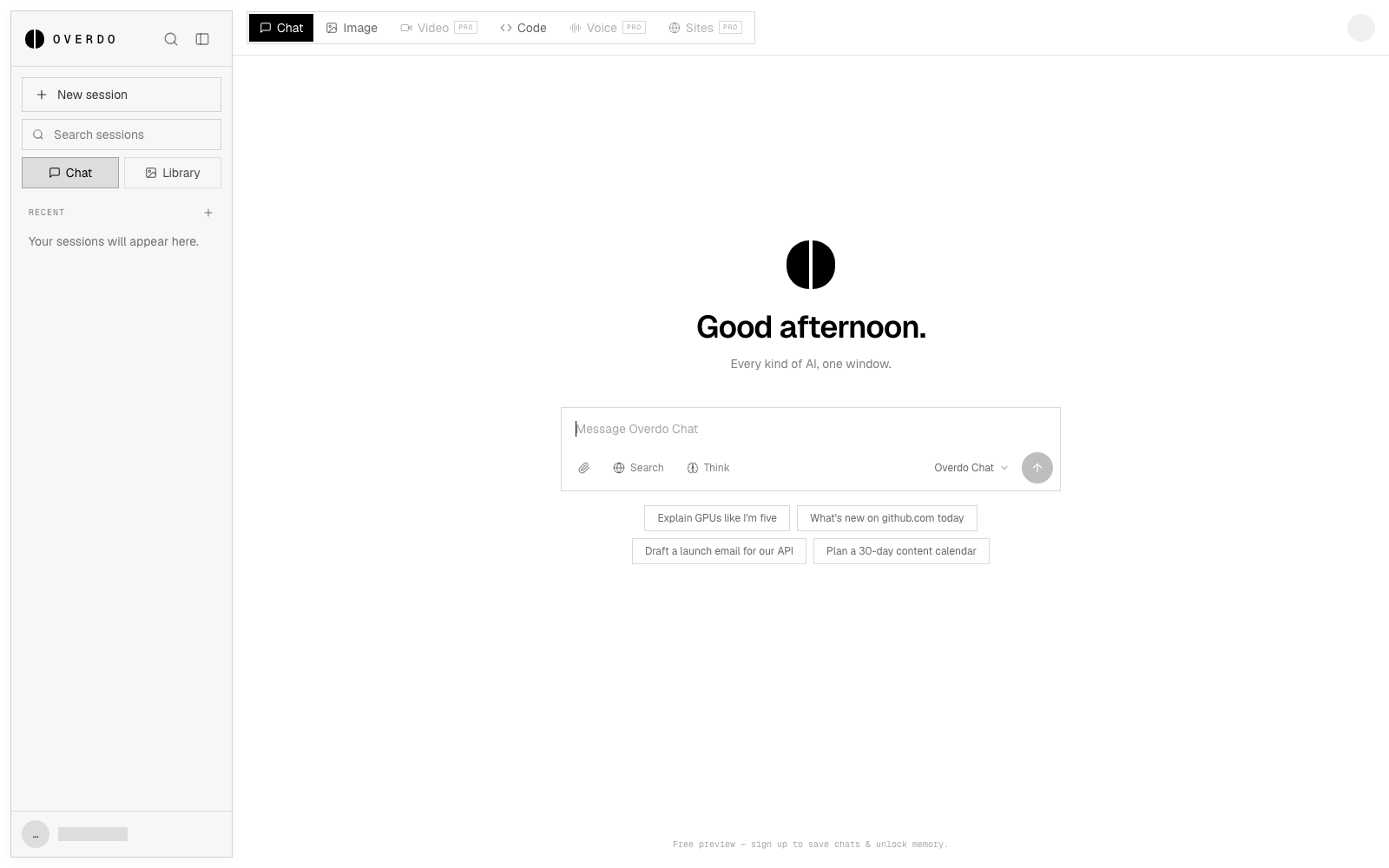
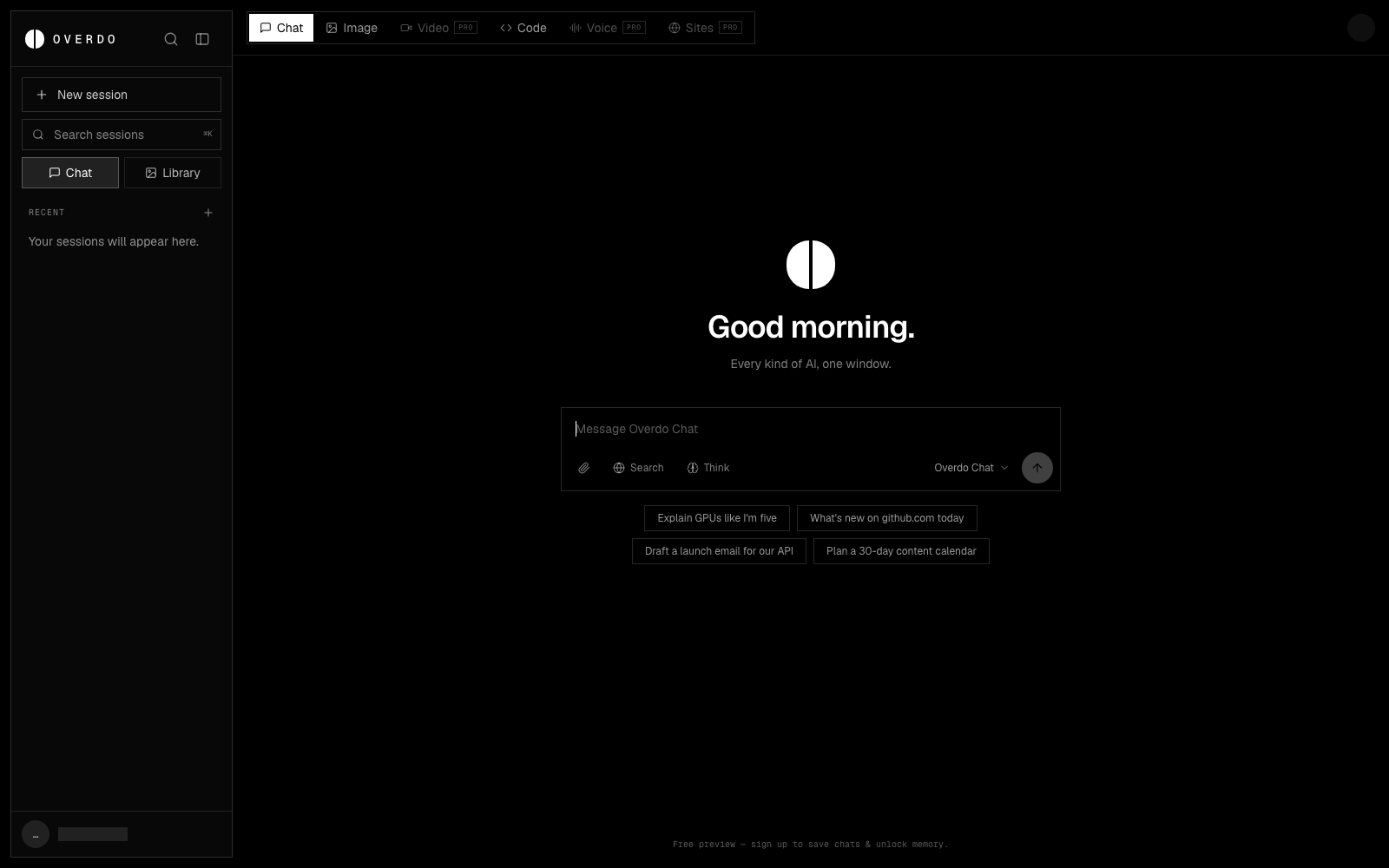
Every kind of AI in one native window — chat, code, image, video, calls, and sites — with its own icon, its own window, and updates that install themselves.
Free · auto-updates built in · same account as the web app
Overdo
01
Download & install
Mac: open the dmg and drag Overdo into Applications. Windows: run the installer — it handles the rest.
02
First launch — allow it once
The app isn't notarized yet, so you get a one-time warning. Mac: right-click → Open. Windows: More info → Run anyway.
03
Sign in, and it stays fresh
Updates install themselves — a one-click prompt when a new version lands. No reinstalling, ever.
Good to know
- — Mac requires Apple silicon (M1 or later) on macOS 13+. Windows build runs on Windows 10/11 x64. Intel Mac and Linux are on the roadmap.
- — Your account, sessions, and settings sync automatically — it's the same Overdo you use in the browser.
- — The app stays inside the app: links that would leave the workspace open in your real browser instead.
- — First launch on Windows may show a SmartScreen prompt — click "More info" → "Run anyway". It's a one-time unsigned-app warning, same as Gatekeeper on Mac.
Windows won't run the installer?
The Windows build isn't code-signed yet, so Windows may stop it before it ever opens. What you see decides the fix:
- — "Windows protected your PC" (SmartScreen): click More info → Run anyway. It's a one-time reputation warning for unsigned apps.
- — Double-click does nothing at all: Windows 11 Smart App Control blocks unsigned downloads. First try this: right-click Overdo-Setup.exe → Properties → tick Unblock → OK, then run it again — that clears the block for most people. If the file still won't open, check Settings → Privacy & security → Windows Security → App & browser control → Smart App Control; switching it Off works but is permanent for that PC — or email [email protected] and we'll prioritize a signed build.
- — It opens, then looks stuck: it's silently unpacking ~250 MB — give it a full minute before closing it. If it truly never finishes, look for install.log inside %LOCALAPPDATA%\Programs\Overdo and email it to us — it shows exactly where the install stopped.
- — "This app can't run on your PC" : the download was cut short. Delete the file and download it again — the full installer is ~95 MB.
- — The file vanished after downloading: antivirus quarantined it. Open Windows Security → Protection history and allow the file.
- — It installs but never opens: check Windows Security → Protection history — some antivirus quarantines Overdo.exe inside %LOCALAPPDATA%\Programs\Overdo. Restore it and add the folder to your AV's exclusions.